> ## Documentation Index
> Fetch the complete documentation index at: https://bruno-a6972042-docs-timeline-scripts.mintlify.site/llms.txt
> Use this file to discover all available pages before exploring further.
# Global Environment Variables
Global variables are stored in the application's memory. You can access them by visiting the About section from Preferences and navigating to the AppData path location.
Global environment variables can be used across all collections and requests. Think of them as a global store accessible throughout the app.
Instead of creating the same collection variable repeatedly in each collection, you can use global variables to store common values that need to be accessed across different collections. This eliminates the repetitive task of defining the same variables every time.
## Create a Global Environment Variable
1. Go to the **Environments** section (top right corner).
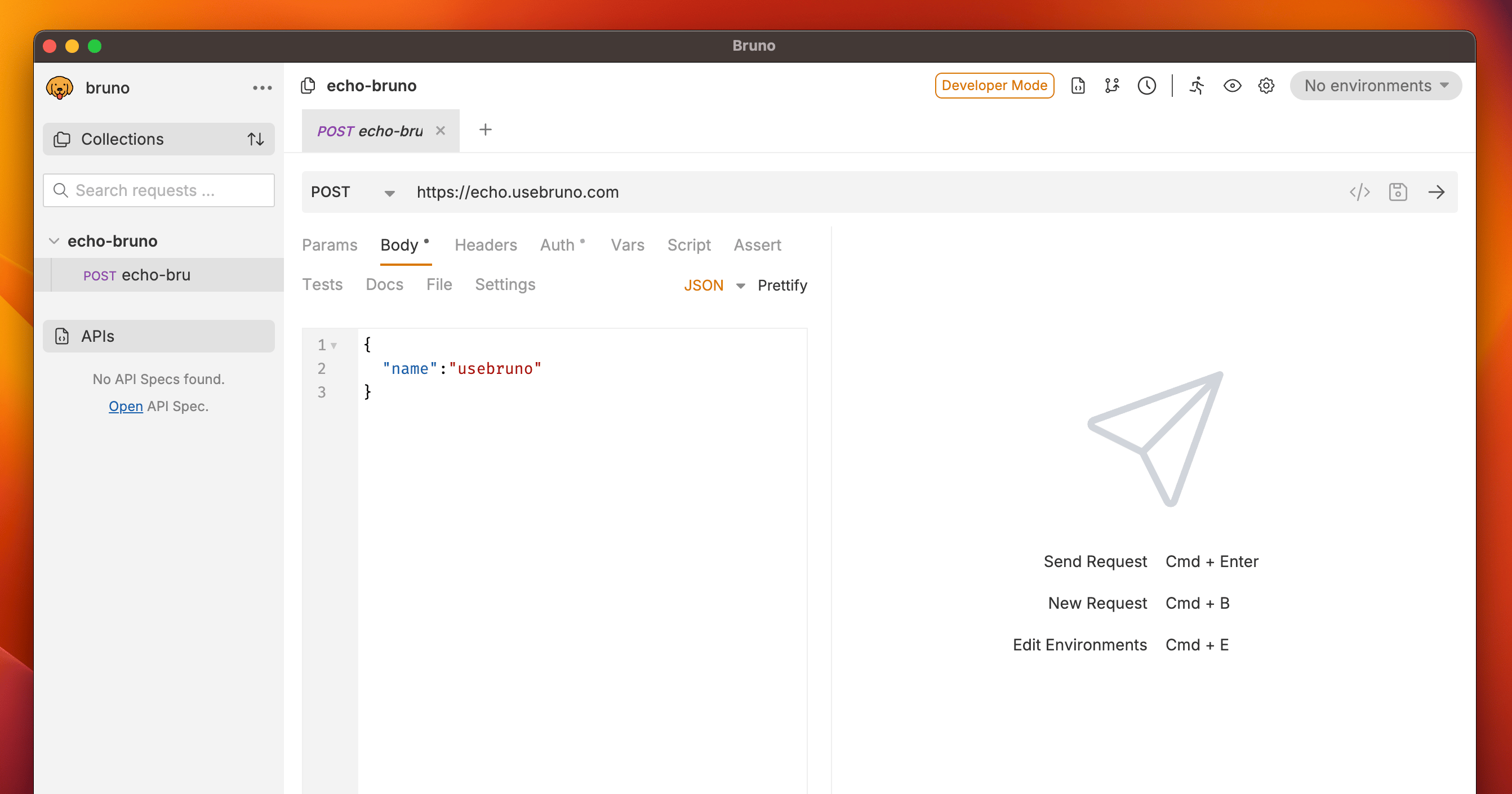 2. Navigate to the **Global** tab and click on **Create**.
3. (Optional) If you need to import an existing environment, you can use the **Import Environment** option.
2. Navigate to the **Global** tab and click on **Create**.
3. (Optional) If you need to import an existing environment, you can use the **Import Environment** option.
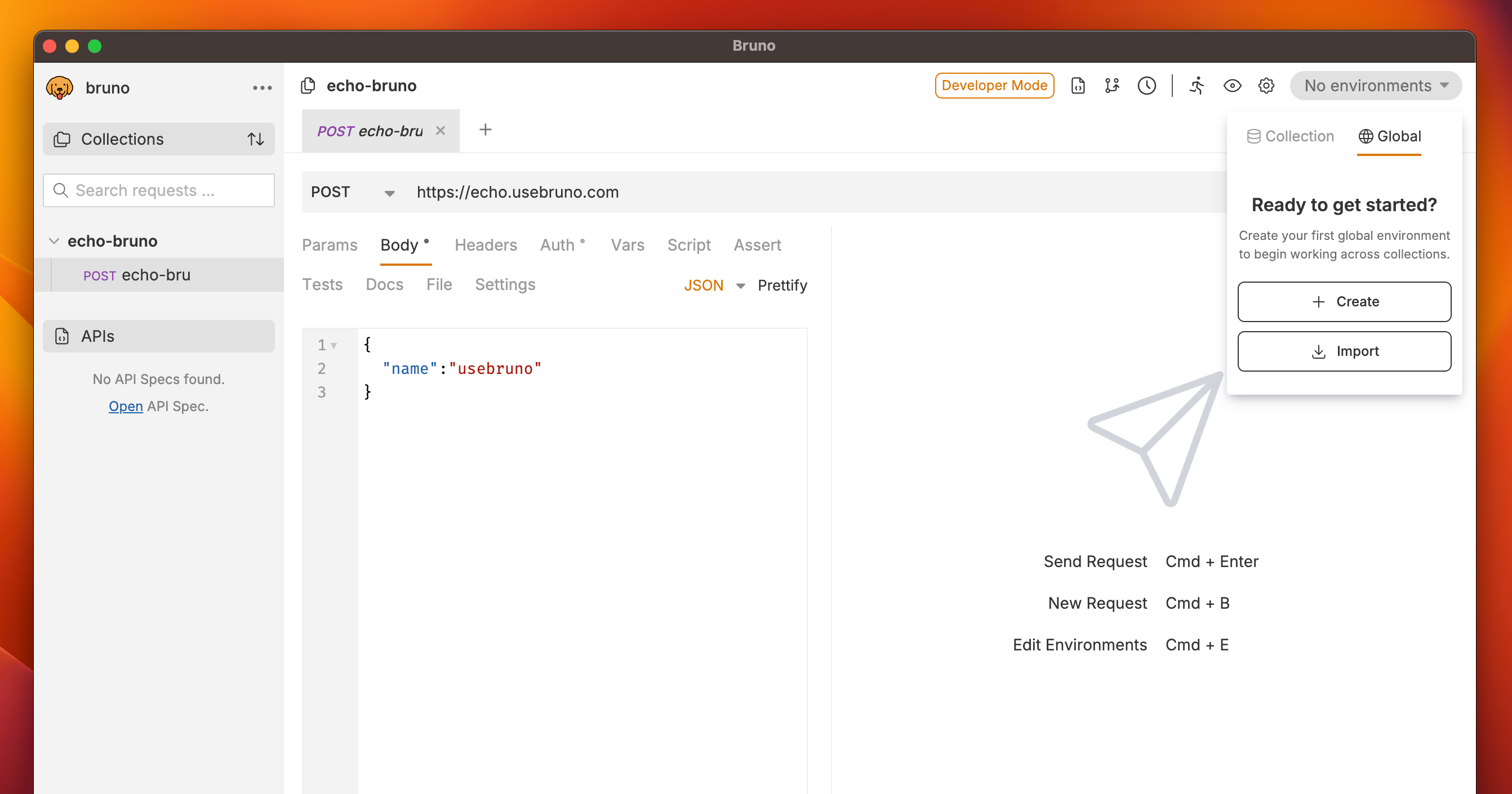 4. Enter a name for your environment and click **Create**.
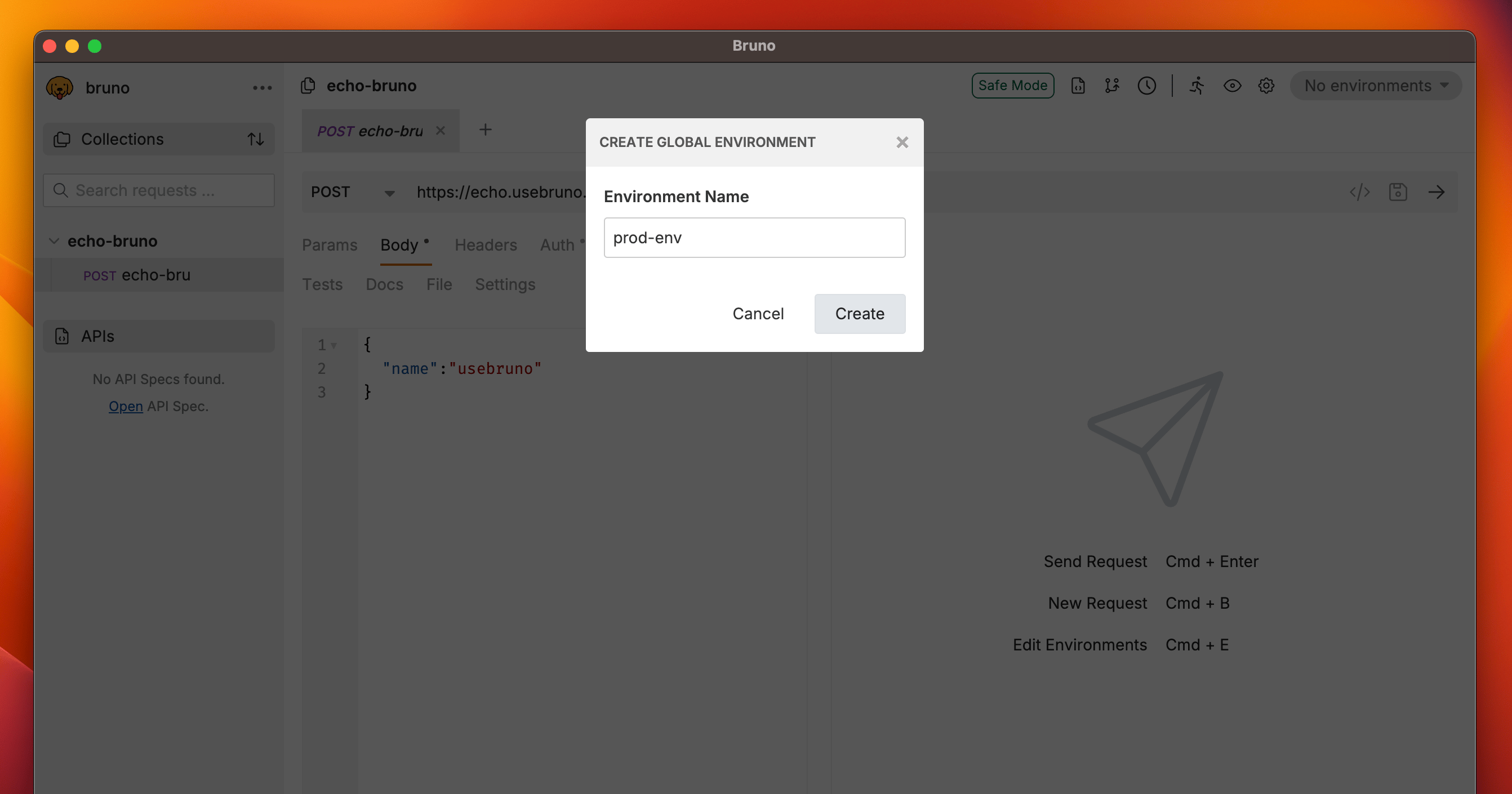 5. Add a variable by specifying the **Name** and **Value**.
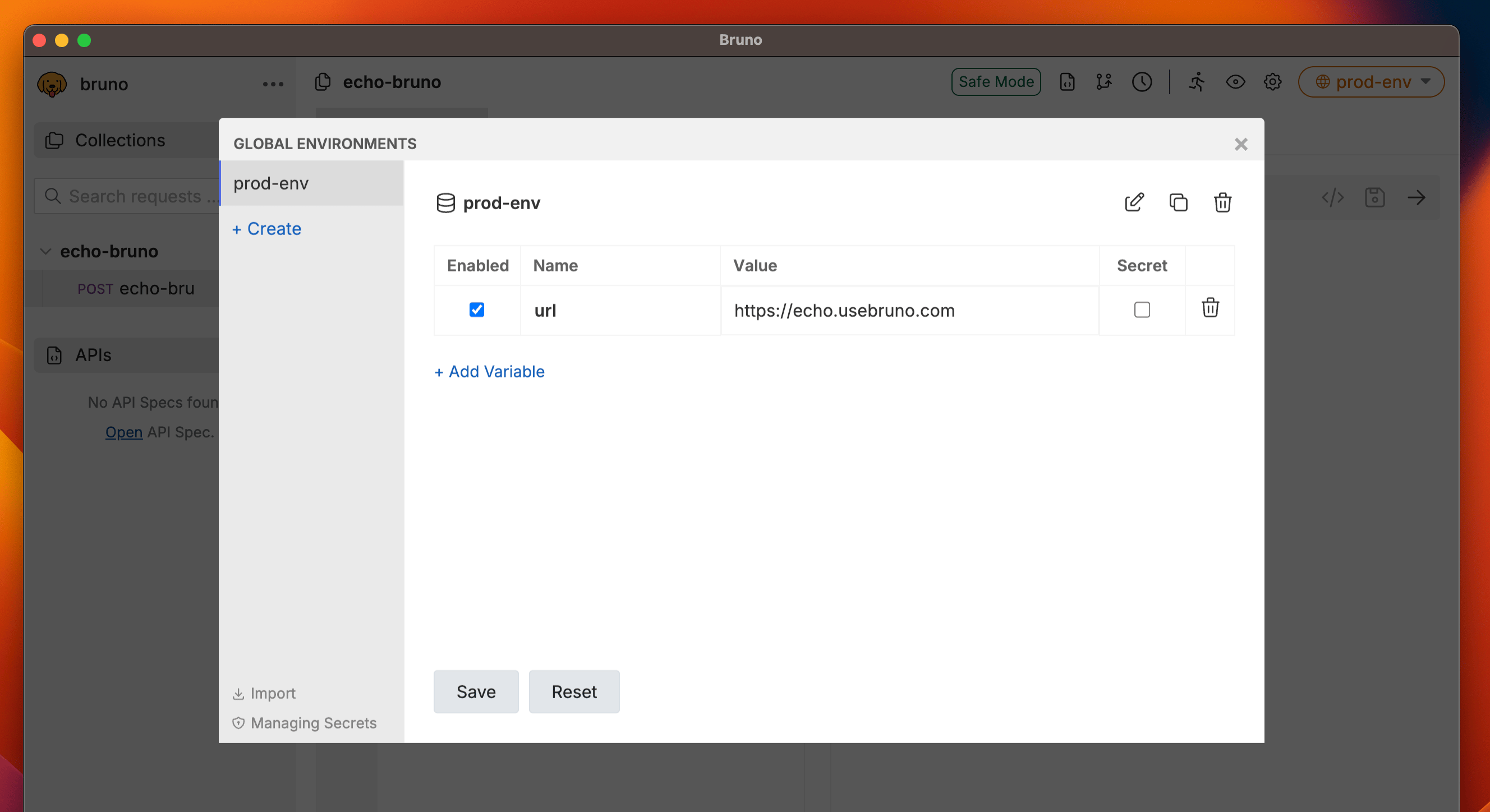 6. Click **Save**.
Your global environment variable is now created and can be accessed across your workspace.
You can click the secret checkbox to hide the values of variables while
hovering over them.
## Using Global Environment Variables
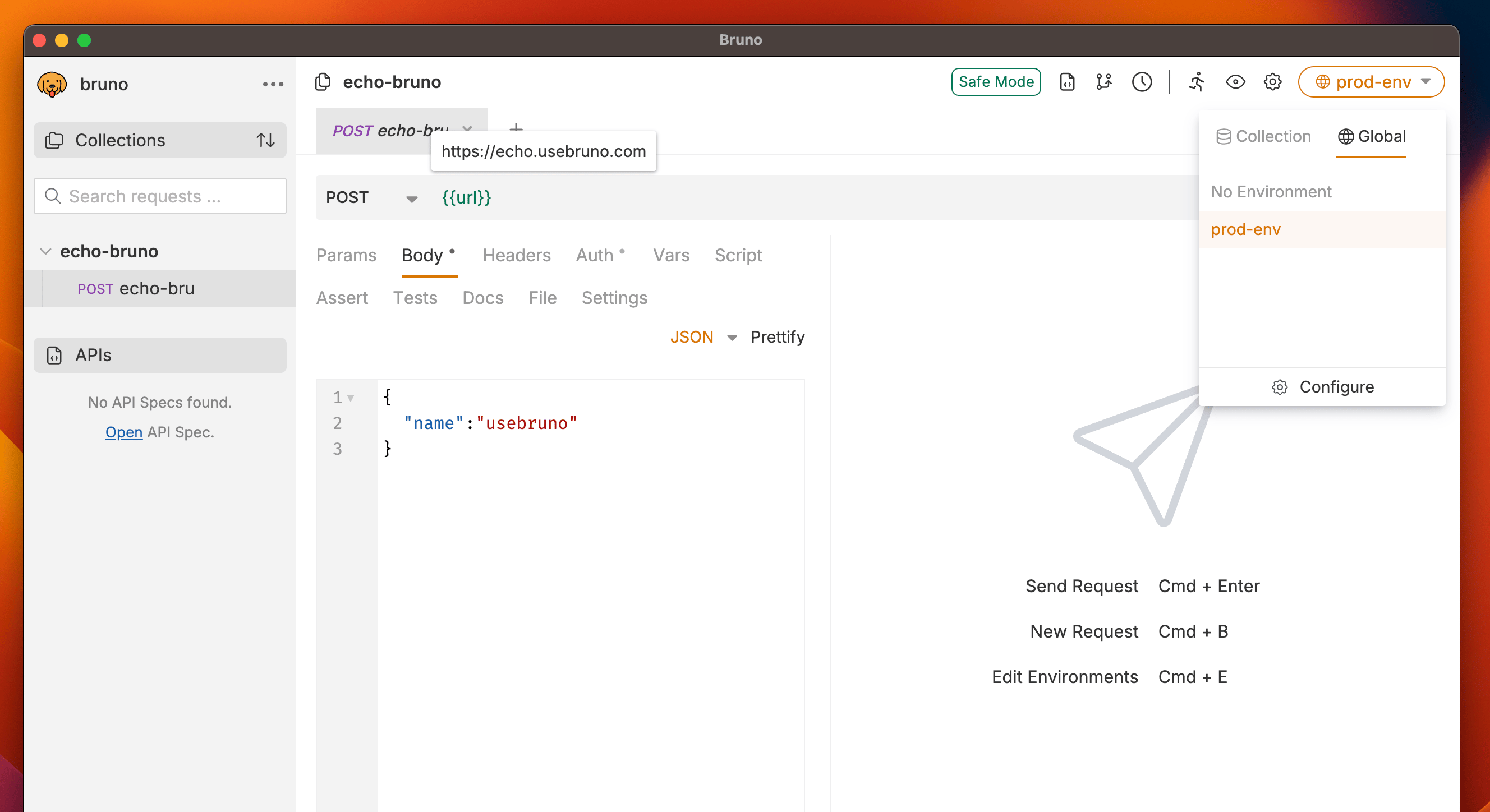
To use a global environment variable, reference it using the format `{{var_name}}` in any request or collection. These variables can be combined with other variables and used throughout your workspace, making them ideal for consistent value sharing.
6. Click **Save**.
Your global environment variable is now created and can be accessed across your workspace.
You can click the secret checkbox to hide the values of variables while
hovering over them.
## Using Global Environment Variables
To use a global environment variable, reference it using the format `{{var_name}}` in any request or collection. These variables can be combined with other variables and used throughout your workspace, making them ideal for consistent value sharing.
 ## Import/Export Global Environment Variables
For detailed instructions on importing and exporting global environment variables, see the [Import/Export Environments](/get-started/import-export-data/import-export-environments) guide.
## Import/Export Global Environment Variables
For detailed instructions on importing and exporting global environment variables, see the [Import/Export Environments](/get-started/import-export-data/import-export-environments) guide.