> ## Documentation Index
> Fetch the complete documentation index at: https://bruno-a6972042-docs-timeline-scripts.mintlify.site/llms.txt
> Use this file to discover all available pages before exploring further.
# Importing Collections
Bruno supports importing collections from multiple tools and formats, making it easy to transition from other API clients or work with API specifications. This guide provides step-by-step instructions for each import format.
## How to Access Import Collection
You can import collections in two ways:
**Option 1: From Home Screen**
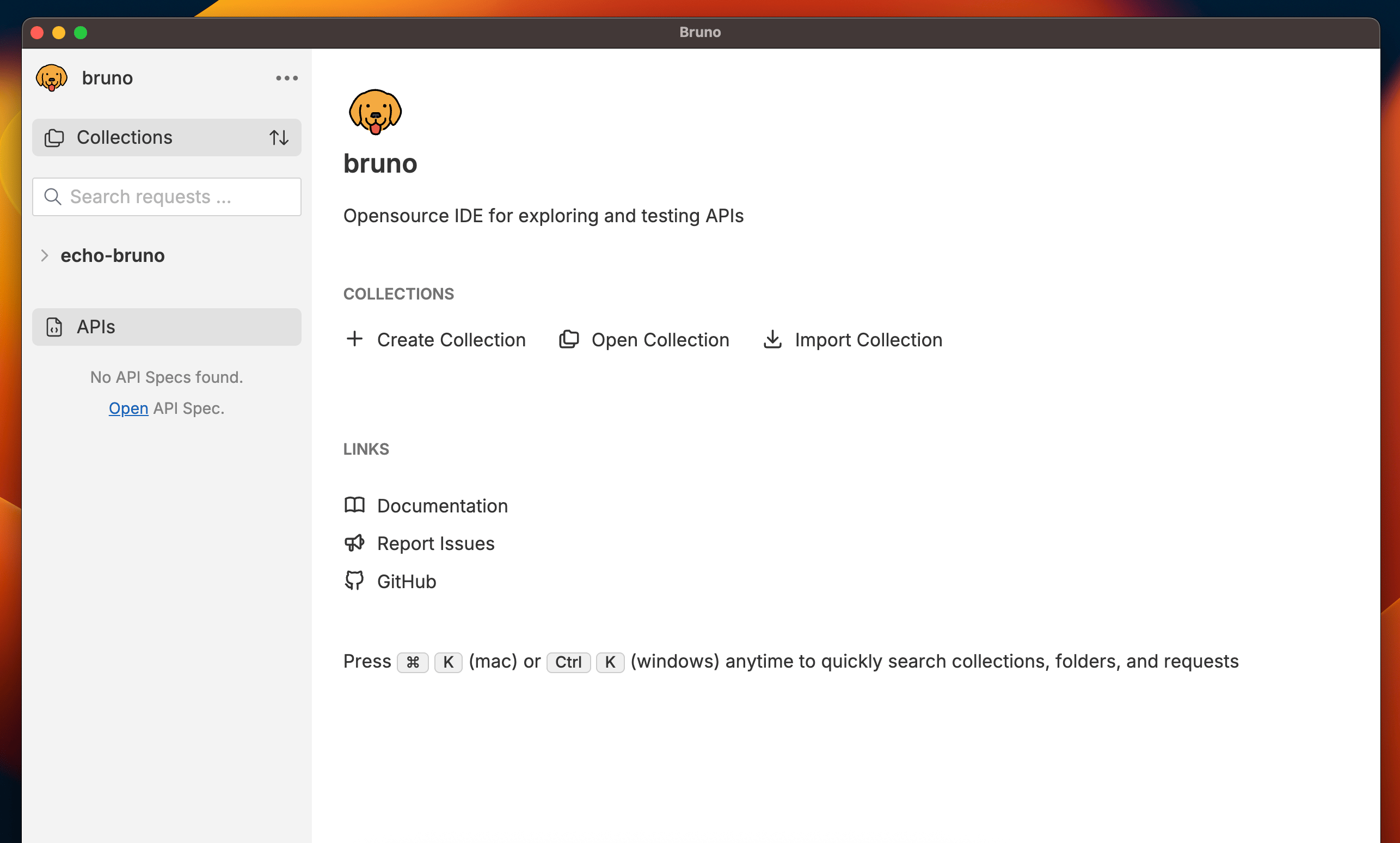 Click **Import Collection** on the Bruno home screen.
**Option 2: From Context Menu**
Click **Import Collection** on the Bruno home screen.
**Option 2: From Context Menu**
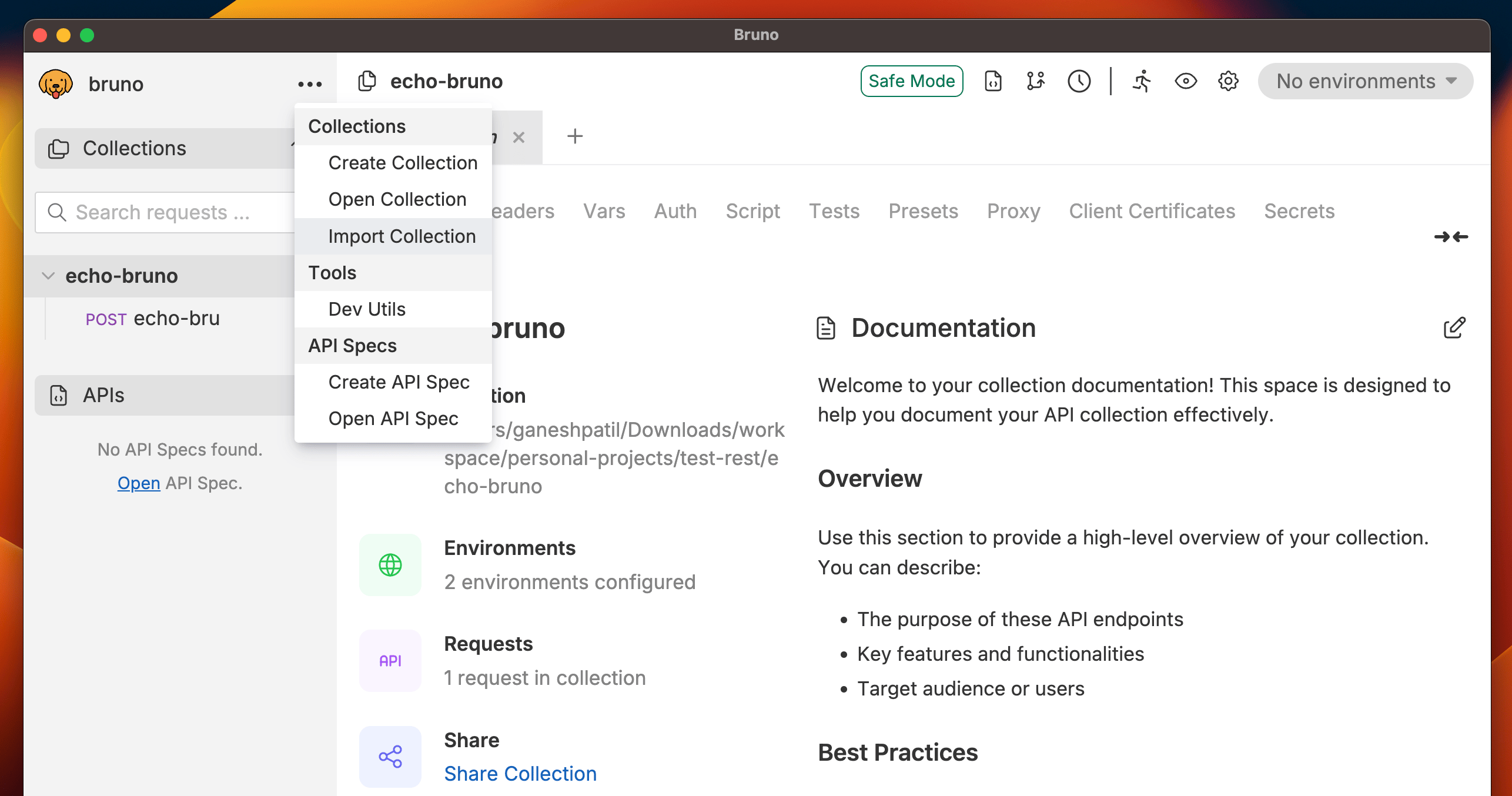 Click the ellipsis (three dots) in the top-left corner and select **Import Collection**.
**Import Options Dialog**
Click the ellipsis (three dots) in the top-left corner and select **Import Collection**.
**Import Options Dialog**
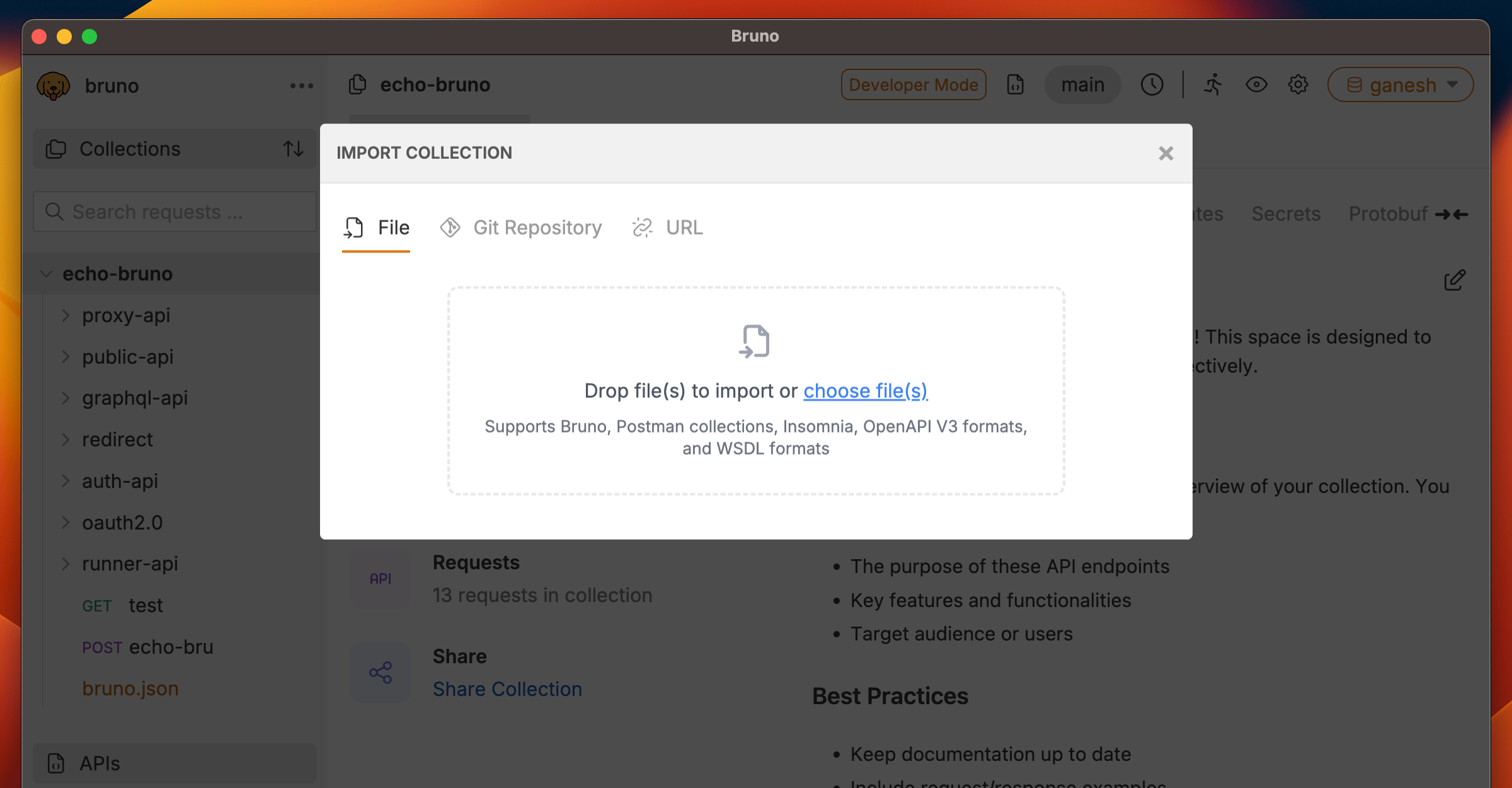 Once the import dialog opens, you'll see all available import formats. Select the one that matches your source.
***
## Import Formats
### 1. Bruno Collection
**Use this when:** A colleague shares their Bruno collection with you or you're restoring a backup.
**Steps:**
1. Open Bruno
2. Click the context menu (three dots) → **Import Collection**
3. Browse and select your Bruno collection folder
4. Click **Import**
Your collection with all requests, folders, and configurations will be imported.
***
### 2. Postman Collection
**Use this when:** You're migrating from Postman or importing collections shared by Postman users.
**Steps:**
1. **Export from Postman:**
* Open Postman
* Click on your collection → **Export**
* Choose **Collection** format
* Save the `.json` file
2. **Import to Bruno:**
* Open Bruno
* Click the context menu (three dots) → **Import Collection**
* Drag and drop your exported `.json` file, or click to browse
* Click **Import**
**Learn more:** [Postman Migration](/get-started/import-export-data/postman-migration)
***
### 3. Postman Data Export
**Postman Data Export** is available in our **Ultimate Edition**. This allows you to import your entire Postman workspace including collections, environments, and globals in one go.
**Use this when:** You want to migrate your entire Postman workspace to Bruno.
**Steps:**
1. **Export from Postman:**
* Open Postman
* Go to **Settings** → **Data**
* Click **Export Data**
* Choose what to include (collections, environments, globals)
* Download the export file
2. **Import to Bruno:**
* Open Bruno
* Click the context menu (three dots) → **Import Collection**
* Select your exported data file
* Click **Import**
**Complete guide:** [Postman Migration Guide](/get-started/import-export-data/postman-migration)
***
### 4. Insomnia Collection
**Use this when:** You're migrating from Insomnia or importing collections from Insomnia users.
**Steps:**
1. **Export from Insomnia:**
* Open Insomnia
* Click on your workspace/collection
* Go to **Application** menu → **Preferences** → **Data**
* Click **Export Data**
* Choose **Export Collections** or **Export Workspace**
* Save the `.json` file
2. **Import to Bruno:**
* Open Bruno
* Click the context menu (three dots) → **Import Collection**
* Drag and drop your exported `.json` file, or click to browse
* Click **Import**
***
### 5. Cloning a Git Repository
**Git Integration** is available in our **Pro** and **Ultimate** Editions.
**Use this when:** Your team stores Bruno collections in a Git repository for version control and collaboration.
**Prerequisites:**
* Make sure the Git repository contains a valid Bruno collection
* Ensure you have access credentials for the repository
**Steps:**
1. Open Bruno
2. Click the context menu (three dots) → **Import Collection**
3. Select **Clone from Git Repository**
4. Enter the Git repository URL
5. Choose the local destination folder
6. Click **Clone**
Once the import dialog opens, you'll see all available import formats. Select the one that matches your source.
***
## Import Formats
### 1. Bruno Collection
**Use this when:** A colleague shares their Bruno collection with you or you're restoring a backup.
**Steps:**
1. Open Bruno
2. Click the context menu (three dots) → **Import Collection**
3. Browse and select your Bruno collection folder
4. Click **Import**
Your collection with all requests, folders, and configurations will be imported.
***
### 2. Postman Collection
**Use this when:** You're migrating from Postman or importing collections shared by Postman users.
**Steps:**
1. **Export from Postman:**
* Open Postman
* Click on your collection → **Export**
* Choose **Collection** format
* Save the `.json` file
2. **Import to Bruno:**
* Open Bruno
* Click the context menu (three dots) → **Import Collection**
* Drag and drop your exported `.json` file, or click to browse
* Click **Import**
**Learn more:** [Postman Migration](/get-started/import-export-data/postman-migration)
***
### 3. Postman Data Export
**Postman Data Export** is available in our **Ultimate Edition**. This allows you to import your entire Postman workspace including collections, environments, and globals in one go.
**Use this when:** You want to migrate your entire Postman workspace to Bruno.
**Steps:**
1. **Export from Postman:**
* Open Postman
* Go to **Settings** → **Data**
* Click **Export Data**
* Choose what to include (collections, environments, globals)
* Download the export file
2. **Import to Bruno:**
* Open Bruno
* Click the context menu (three dots) → **Import Collection**
* Select your exported data file
* Click **Import**
**Complete guide:** [Postman Migration Guide](/get-started/import-export-data/postman-migration)
***
### 4. Insomnia Collection
**Use this when:** You're migrating from Insomnia or importing collections from Insomnia users.
**Steps:**
1. **Export from Insomnia:**
* Open Insomnia
* Click on your workspace/collection
* Go to **Application** menu → **Preferences** → **Data**
* Click **Export Data**
* Choose **Export Collections** or **Export Workspace**
* Save the `.json` file
2. **Import to Bruno:**
* Open Bruno
* Click the context menu (three dots) → **Import Collection**
* Drag and drop your exported `.json` file, or click to browse
* Click **Import**
***
### 5. Cloning a Git Repository
**Git Integration** is available in our **Pro** and **Ultimate** Editions.
**Use this when:** Your team stores Bruno collections in a Git repository for version control and collaboration.
**Prerequisites:**
* Make sure the Git repository contains a valid Bruno collection
* Ensure you have access credentials for the repository
**Steps:**
1. Open Bruno
2. Click the context menu (three dots) → **Import Collection**
3. Select **Clone from Git Repository**
4. Enter the Git repository URL
5. Choose the local destination folder
6. Click **Clone**
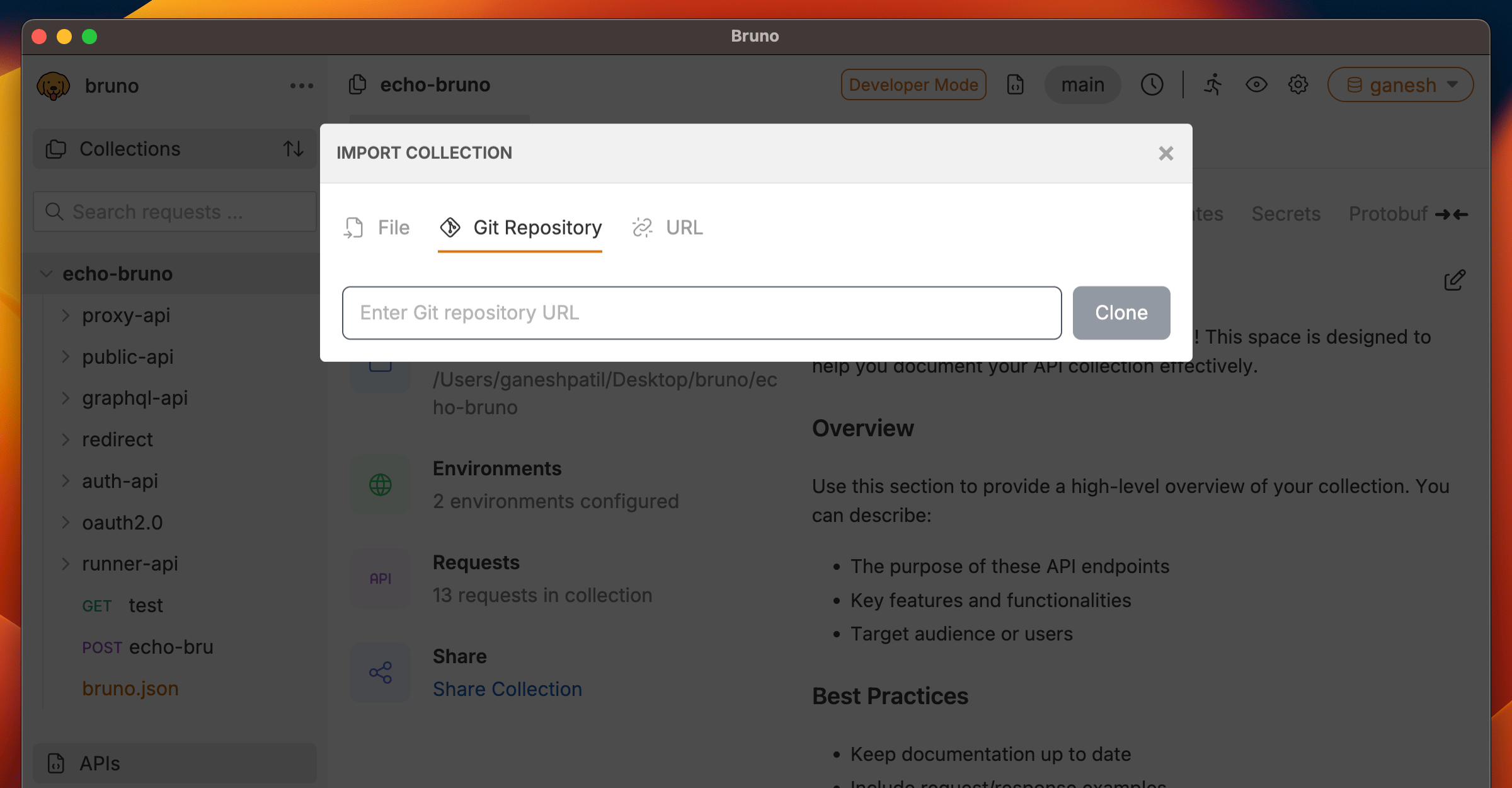 The collection will be cloned and you can start using it immediately. Any changes you make can be committed back to the repository.
**Complete guide:** [Git Integration Overview](/git-integration/overview)
***
### 6. OpenAPI Specification
**Use this when:** You have an OpenAPI (Swagger) specification file and want to generate API requests from it.
#### Import from OpenAPI File
**Steps:**
1. **Obtain your OpenAPI file:**
* Get your OpenAPI specification file (`.json` or `.yaml` format)
* Ensure it's OpenAPI v3.x format
2. **Import to Bruno:**
* Open Bruno
* Click the context menu (three dots) → **Import Collection**
* Drag and drop your OpenAPI file (`.json` or `.yaml`), or click to browse
* Click **Import**
#### Import from OpenAPI URL
**Steps:**
1. Open Bruno
2. Click the context menu (three dots) → **Import Collection**
3. Enter the OpenAPI specification URL (e.g., `https://api.example.com/openapi.json`)
4. Click **Import**
The collection will be cloned and you can start using it immediately. Any changes you make can be committed back to the repository.
**Complete guide:** [Git Integration Overview](/git-integration/overview)
***
### 6. OpenAPI Specification
**Use this when:** You have an OpenAPI (Swagger) specification file and want to generate API requests from it.
#### Import from OpenAPI File
**Steps:**
1. **Obtain your OpenAPI file:**
* Get your OpenAPI specification file (`.json` or `.yaml` format)
* Ensure it's OpenAPI v3.x format
2. **Import to Bruno:**
* Open Bruno
* Click the context menu (three dots) → **Import Collection**
* Drag and drop your OpenAPI file (`.json` or `.yaml`), or click to browse
* Click **Import**
#### Import from OpenAPI URL
**Steps:**
1. Open Bruno
2. Click the context menu (three dots) → **Import Collection**
3. Enter the OpenAPI specification URL (e.g., `https://api.example.com/openapi.json`)
4. Click **Import**
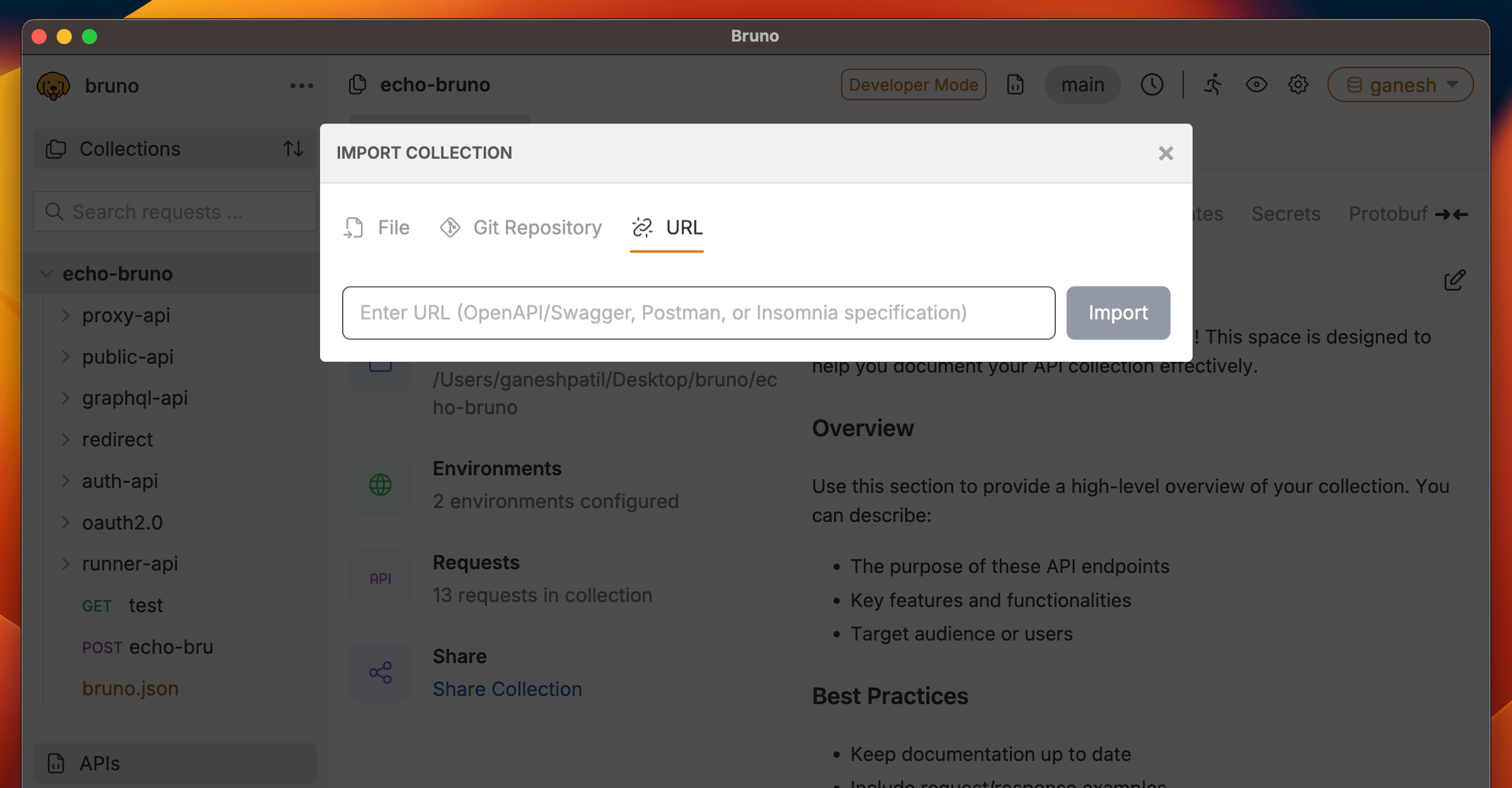 Bruno will automatically generate requests for all API endpoints defined in the specification.
**Learn more:** [OpenAPI Guide](/open-api/importOAS)
***
### 7. WSDL (Web Services Description Language)
**Use this when:** You're working with SOAP-based web services and have a WSDL file.
#### Import from WSDL File
**Steps:**
1. **Obtain your WSDL file:**
* Get the `.wsdl` file from your SOAP service provider
* Or download it from the service endpoint (usually available at `?wsdl`)
2. **Import to Bruno:**
* Open Bruno
* Click the context menu (three dots) → **Import Collection**
* Drag and drop your `.wsdl` file, or click to browse
* Click **Import**
**Complete guide:** [SOAP Requests](/converters/wsdl-to-bruno)
***
## After Import
Once your collection is imported:
1. **Review the requests** - Check that all requests imported correctly
2. **Configure environments** - Set up variables for different environments (dev, staging, production)
3. **Test the requests** - Execute a few requests to ensure they work as expected
4. **Organize** - Create folders and organize requests if needed
5. **Set up authentication** - Configure authentication methods if required
## Need Help?
If you encounter issues during import:
* Check the format of your export file
* Ensure you're using the latest version of Bruno
* Visit our [GitHub Discussions](https://github.com/usebruno/bruno/discussions) for community support
* Report bugs on [GitHub Issues](https://github.com/usebruno/bruno/issues)
Bruno will automatically generate requests for all API endpoints defined in the specification.
**Learn more:** [OpenAPI Guide](/open-api/importOAS)
***
### 7. WSDL (Web Services Description Language)
**Use this when:** You're working with SOAP-based web services and have a WSDL file.
#### Import from WSDL File
**Steps:**
1. **Obtain your WSDL file:**
* Get the `.wsdl` file from your SOAP service provider
* Or download it from the service endpoint (usually available at `?wsdl`)
2. **Import to Bruno:**
* Open Bruno
* Click the context menu (three dots) → **Import Collection**
* Drag and drop your `.wsdl` file, or click to browse
* Click **Import**
**Complete guide:** [SOAP Requests](/converters/wsdl-to-bruno)
***
## After Import
Once your collection is imported:
1. **Review the requests** - Check that all requests imported correctly
2. **Configure environments** - Set up variables for different environments (dev, staging, production)
3. **Test the requests** - Execute a few requests to ensure they work as expected
4. **Organize** - Create folders and organize requests if needed
5. **Set up authentication** - Configure authentication methods if required
## Need Help?
If you encounter issues during import:
* Check the format of your export file
* Ensure you're using the latest version of Bruno
* Visit our [GitHub Discussions](https://github.com/usebruno/bruno/discussions) for community support
* Report bugs on [GitHub Issues](https://github.com/usebruno/bruno/issues)