> ## Documentation Index
> Fetch the complete documentation index at: https://bruno-a6972042-docs-timeline-scripts.mintlify.site/llms.txt
> Use this file to discover all available pages before exploring further.
# Creating a Request
Bruno makes it easy to work with various API protocols - whether you're building RESTful services with HTTP, designing GraphQL APIs, or converting cURL commands into reusable requests. With support for all standard HTTP methods (GET, POST, PUT, DELETE, etc.), you can create, test, and manage your API requests efficiently.
Let's walk through how to create your first request:
## Create a New Request in Bruno
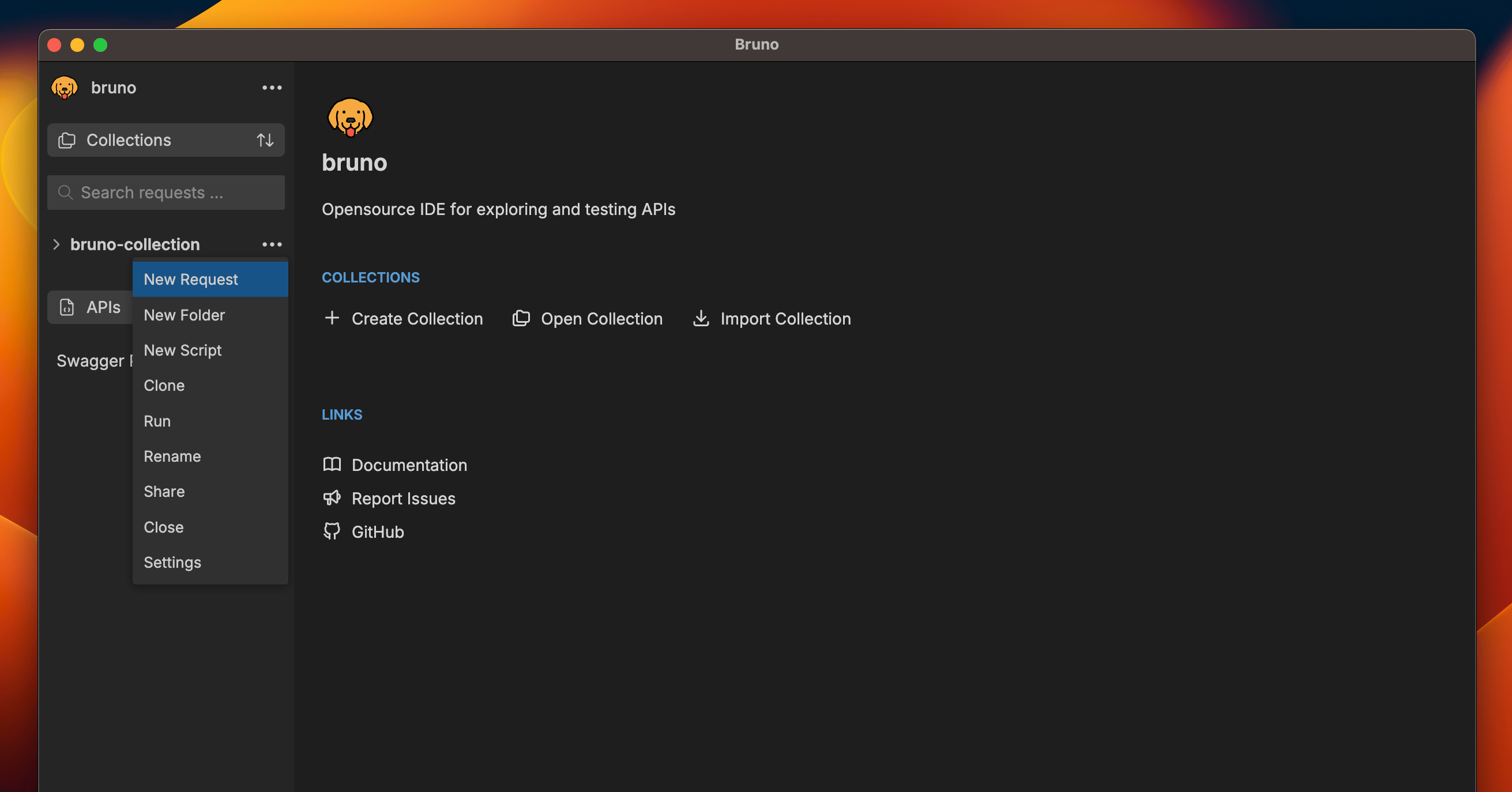
1. Go to your Collection, and click on the `···` button.
2. Select `New Request` in the dropdown menu.
 3. In the dialog that appears, choose:
* Request Type (HTTP, GraphQL, or from cURL)
* Request Name
* HTTP Method (GET, POST, PUT, etc.)
* URL
3. In the dialog that appears, choose:
* Request Type (HTTP, GraphQL, or from cURL)
* Request Name
* HTTP Method (GET, POST, PUT, etc.)
* URL
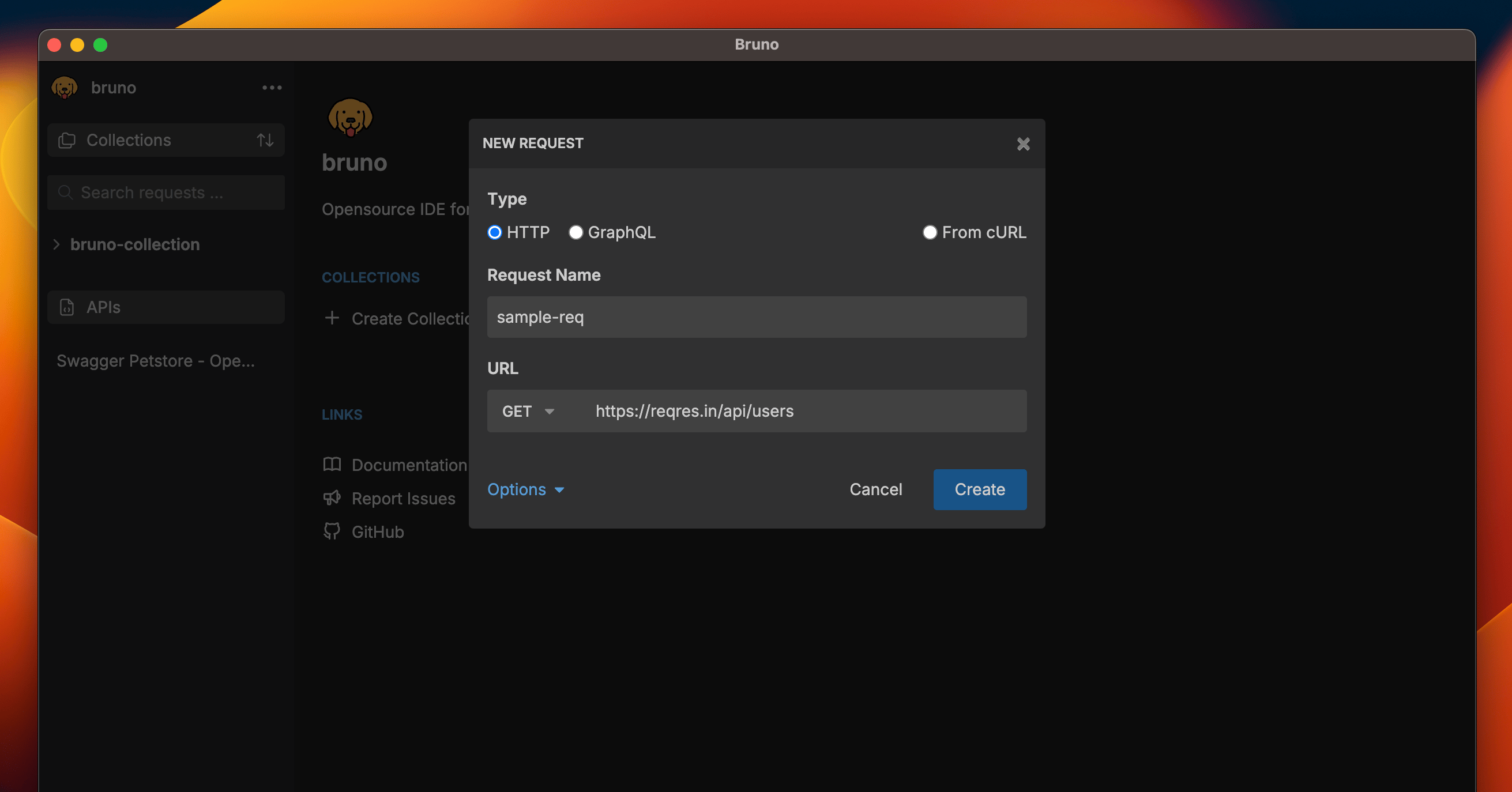 4. Click `Create` to finish.
You have successfully created your first request in Bruno! Feel free to add headers, query parameters, and a request body to your request, or play around with the other options available.
## Custom Request Filenames
Starting with [Bruno v1.40.0 ↗](https://www.usebruno.com/downloads), you can
now use special characters in request names and customize how they appear in
the filesystem.
You can use any characters in your request names, including special characters like `/`, `[`, `]`, `*`, etc. Bruno automatically handles filesystem compatibility by replacing unsupported characters with `-` in the filenames while preserving your original request name.
### To view or customize the filesystem name
1. Select **Show Filesystem Name.**
4. Click `Create` to finish.
You have successfully created your first request in Bruno! Feel free to add headers, query parameters, and a request body to your request, or play around with the other options available.
## Custom Request Filenames
Starting with [Bruno v1.40.0 ↗](https://www.usebruno.com/downloads), you can
now use special characters in request names and customize how they appear in
the filesystem.
You can use any characters in your request names, including special characters like `/`, `[`, `]`, `*`, etc. Bruno automatically handles filesystem compatibility by replacing unsupported characters with `-` in the filenames while preserving your original request name.
### To view or customize the filesystem name
1. Select **Show Filesystem Name.**
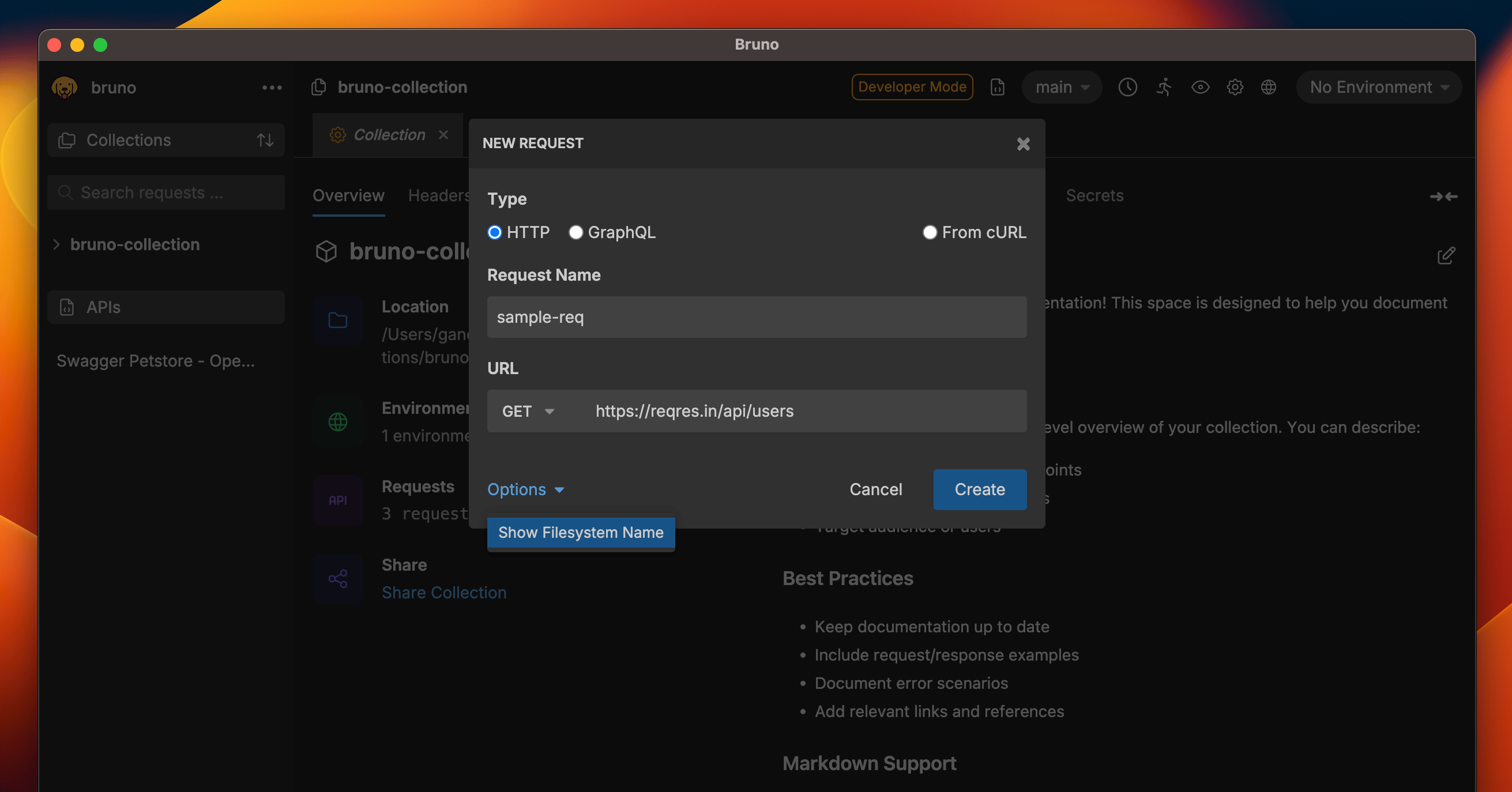 2. You can now see how your request name is stored on the filesystem.
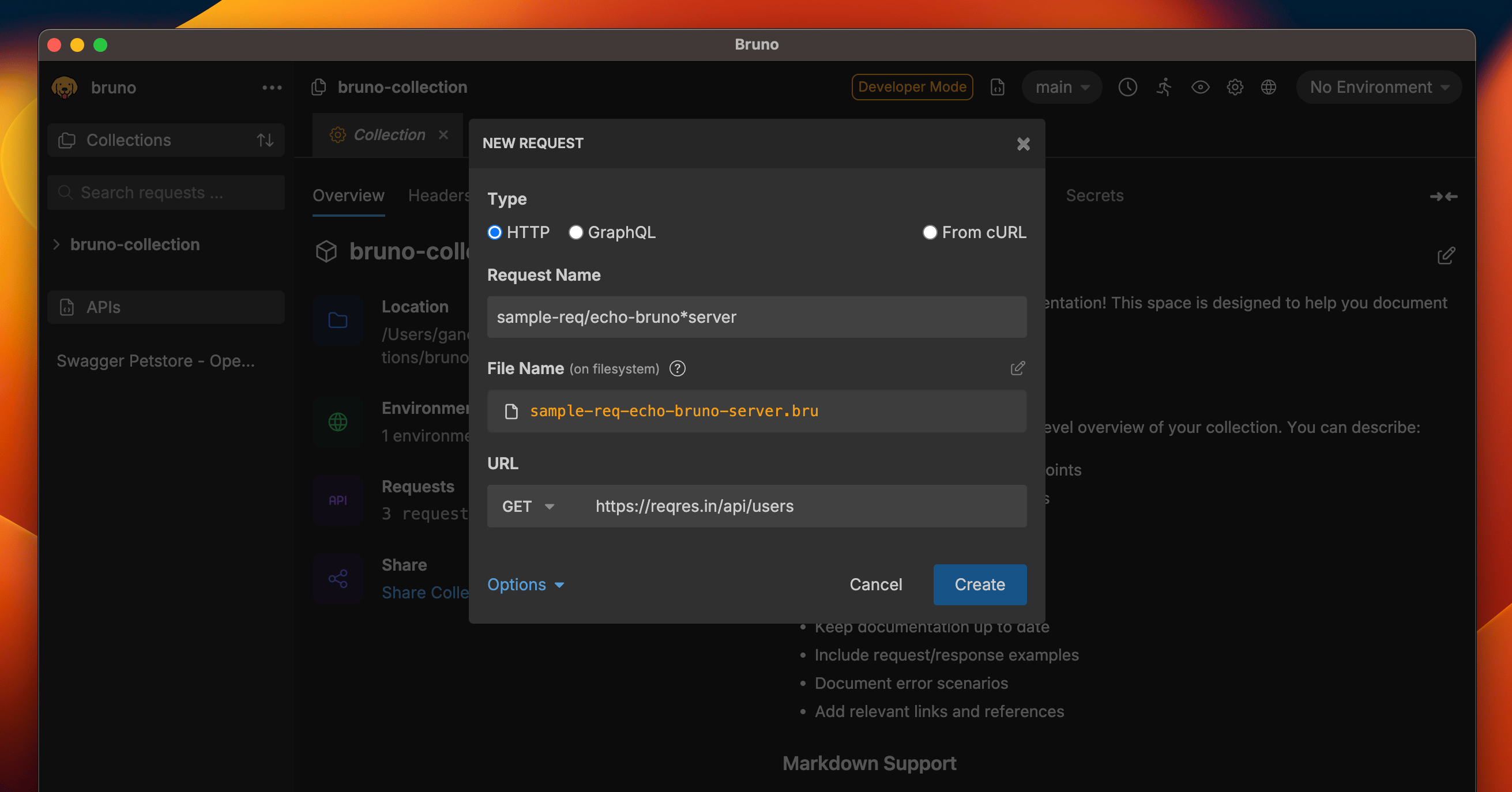 3. (Optional) Click the edit icon to customize the filename while keeping your display name intact.
This feature gives you complete freedom in naming your requests while ensuring filesystem compatibility.
3. (Optional) Click the edit icon to customize the filename while keeping your display name intact.
This feature gives you complete freedom in naming your requests while ensuring filesystem compatibility.