> ## Documentation Index
> Fetch the complete documentation index at: https://bruno-a6972042-docs-timeline-scripts.mintlify.site/llms.txt
> Use this file to discover all available pages before exploring further.
# Create a Folder
Bruno helps you organize your API requests efficiently by grouping them into folders. You can create a structured hierarchy that matches your API's organization, making it easier to manage and navigate your collections.
## Creating a New Folder
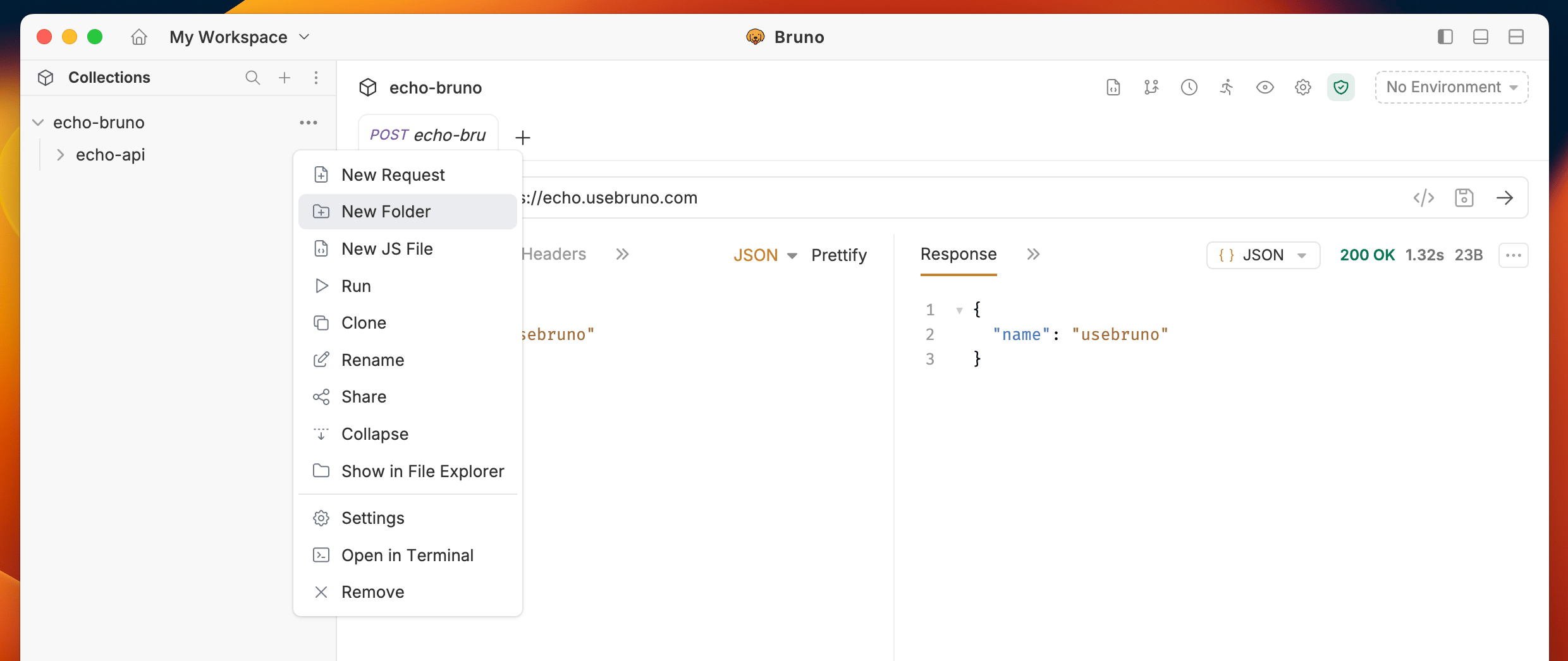
1. Select your Collection from the sidebar.
2. Click on the `···` button.
3. Select `New Folder` from the dropdown menu.
 4. Enter a name for your folder.
5. Click `Create` to finish.
4. Enter a name for your folder.
5. Click `Create` to finish.
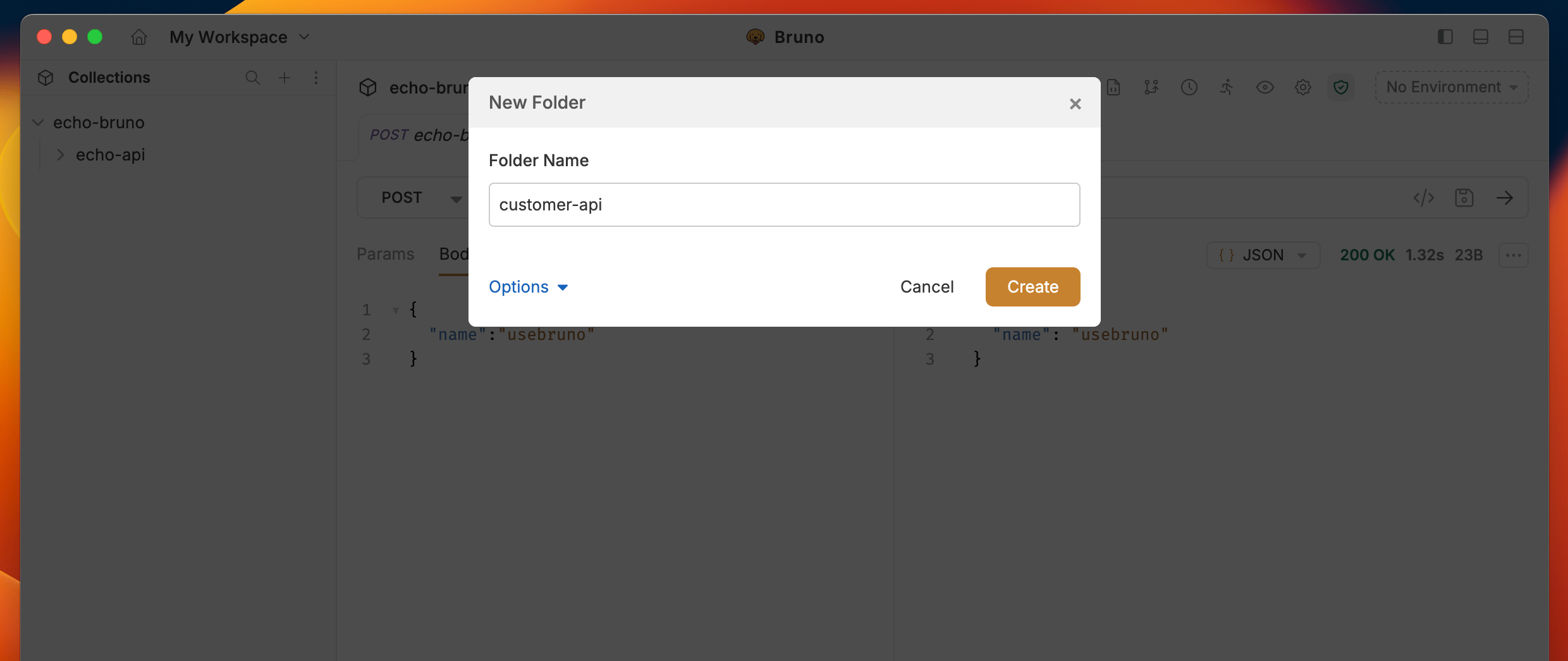 Your new folder is now ready to organize your requests!
## Custom Folder Names
You can use any characters in your folder names, including special characters like `/`, `[`, `]`, `*`, etc. Bruno automatically handles filesystem compatibility by replacing unsupported characters with `-` in the filenames while preserving your original folder name.
### How to View or Customize Filesystem Names
1. Select **Show Filesystem Name.**
Your new folder is now ready to organize your requests!
## Custom Folder Names
You can use any characters in your folder names, including special characters like `/`, `[`, `]`, `*`, etc. Bruno automatically handles filesystem compatibility by replacing unsupported characters with `-` in the filenames while preserving your original folder name.
### How to View or Customize Filesystem Names
1. Select **Show Filesystem Name.**
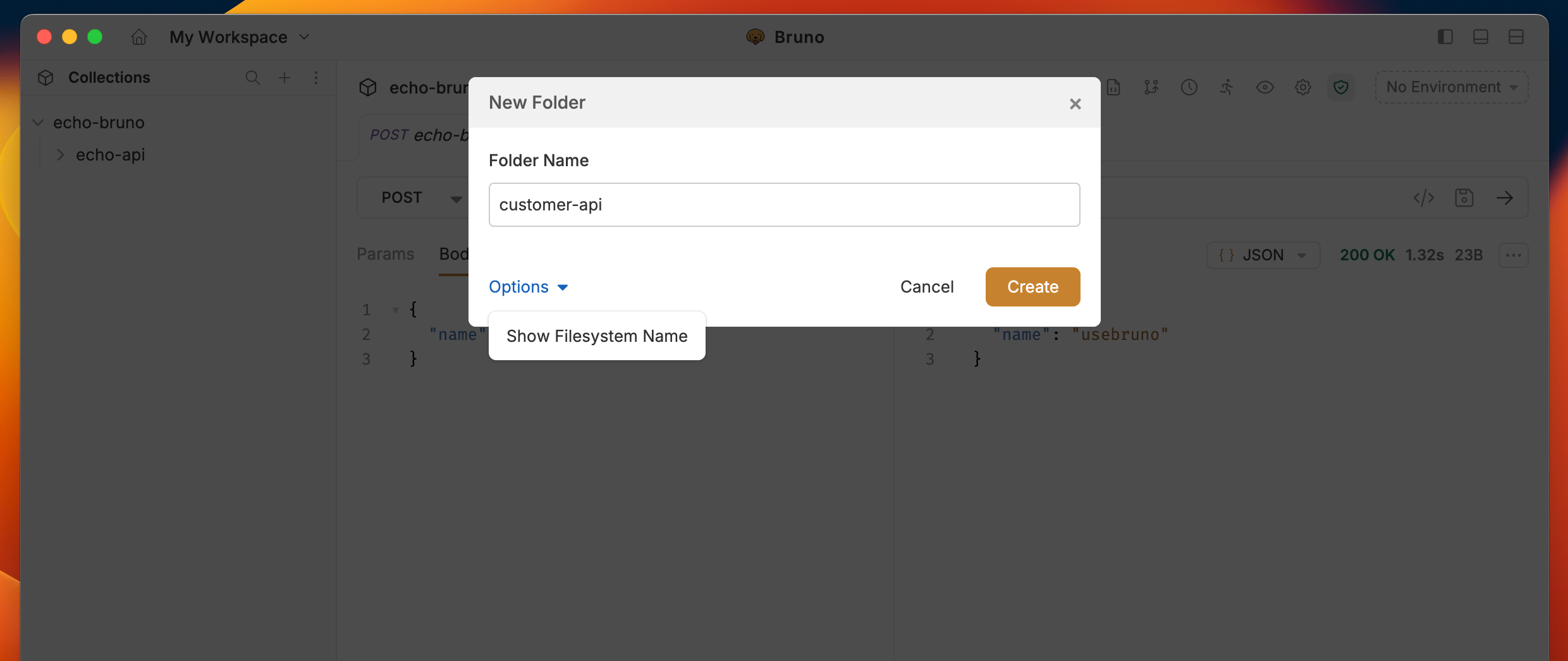 2. You can now see how your folder name is stored on the filesystem.
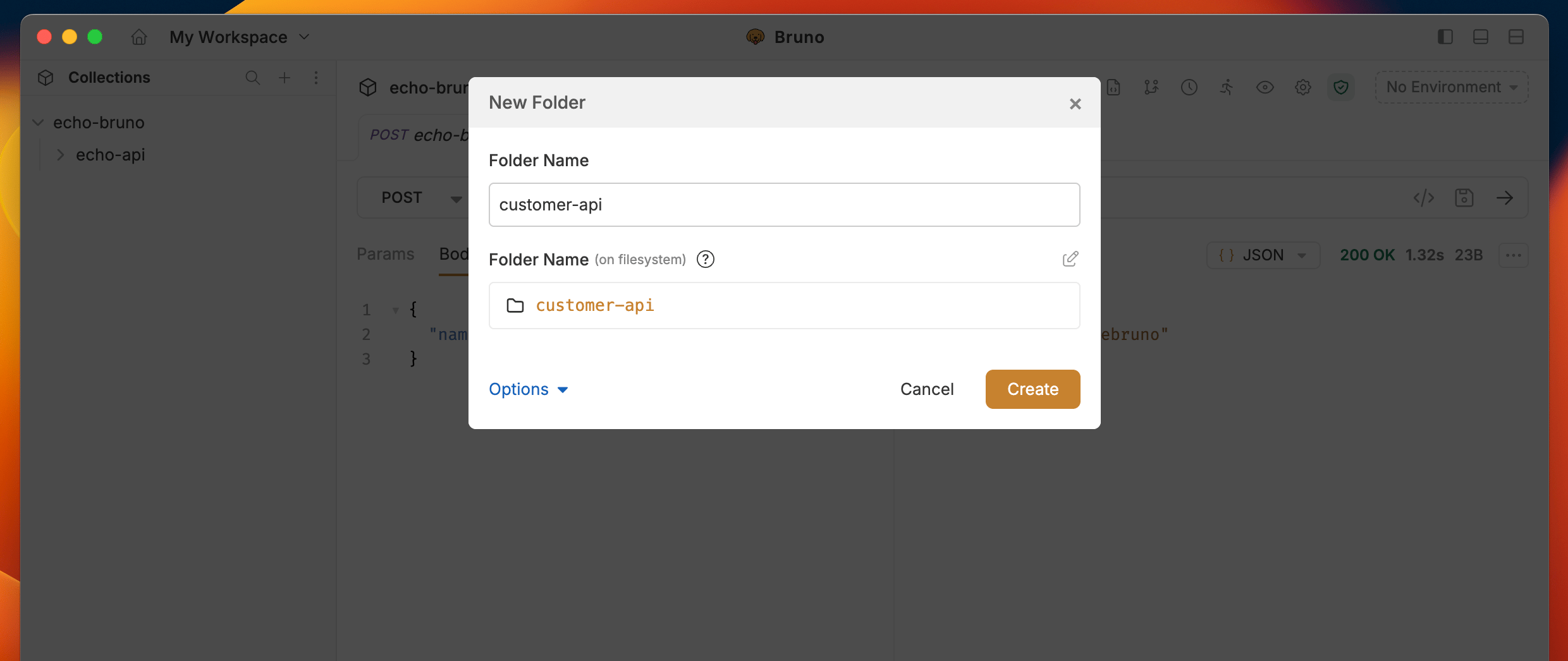 3. (Optional) Click the edit icon to customize the filesystem name while keeping your display name intact.
This feature allows you to:
* Create more descriptive folder organization.
* Use special characters freely.
* Maintain filesystem compatibility automatically.
* Keep your collection structure clean and organized.
### Example
You could name a folder "API \[v2.0] / Authentication" and Bruno will automatically handle the filesystem compatibility while preserving your desired display name.
3. (Optional) Click the edit icon to customize the filesystem name while keeping your display name intact.
This feature allows you to:
* Create more descriptive folder organization.
* Use special characters freely.
* Maintain filesystem compatibility automatically.
* Keep your collection structure clean and organized.
### Example
You could name a folder "API \[v2.0] / Authentication" and Bruno will automatically handle the filesystem compatibility while preserving your desired display name.